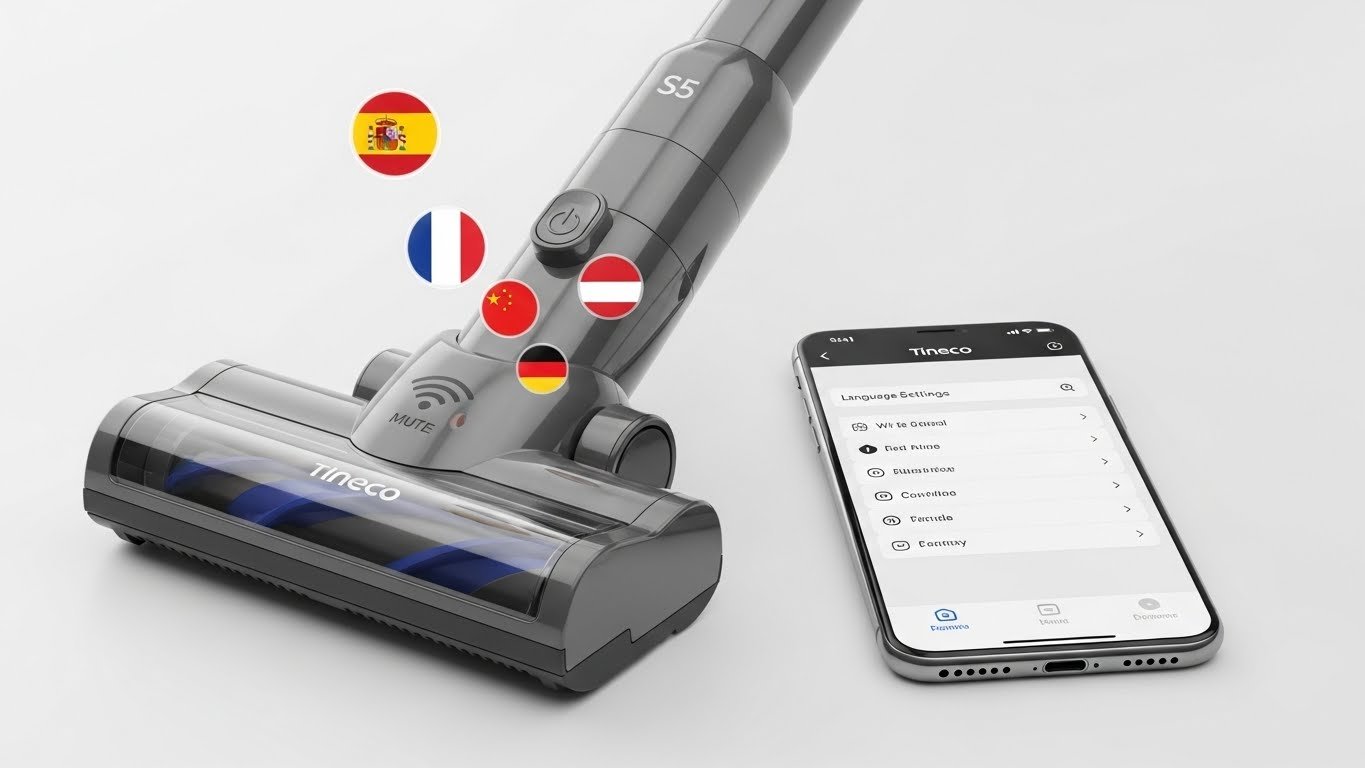
Did you just unbox your Tineco S5 only to find it speaking in a language you don’t understand? You’re not alone. Many users face this challenge, especially when purchasing from international sellers. Learning how to change language on Tineco S5 is simpler than you think, and this guide will walk you through every method.
Understanding Your Tineco S5 Language Settings
The Tineco Floor One S5 is a smart cordless vacuum and mop that uses voice prompts to guide you through cleaning tasks. These announcements include battery alerts, cleaning mode updates, and maintenance reminders. While English is the default setting, your device might arrive in Chinese, French, German, or another language depending on where it was purchased.
Why does this happen? International shipping often means devices are pre-configured for their original market. The good news is that changing the language on your Tineco S5 takes just a few minutes using either the Tineco app or the WiFi/Mute button on your device.
Method 1: Change Language Using the Tineco App (Recommended)
The most reliable way to change your Tineco S5 language is through the official Tineco app. This method works for all S5 models including the S5 Pro, S5 Combo, and S5 Steam.
Step-by-Step App Instructions:
- Download and Install the App Start by downloading the Tineco app from the App Store (iOS) or Google Play (Android). Create a free account or log in if you already have one. The app is essential for accessing advanced settings and firmware updates.
- Connect Your Tineco S5 to WiFi Power on your vacuum and locate the WiFi/Mute button on the handle. Press and hold this button for 3-5 seconds until you hear a beep or see the WiFi indicator light flash. This activates pairing mode.
- In the Tineco app, tap “Add Device” and follow the on-screen prompts. Make sure your phone is connected to a 2.4GHz WiFi network, as the S5 doesn’t support 5GHz networks. The app will guide you through the Bluetooth or WiFi connection process.
- Access Voice Prompt Settings Once connected, tap on your S5 device in the app dashboard. Navigate to “Settings” or “Device Settings,” then look for “Voice Prompt” or “Language” options. You’ll see a list of available languages including English, Spanish, French, German, Chinese, Japanese, and more.
- Select Your Preferred Language Choose your desired language and tap confirm. The vacuum may restart briefly to apply the changes. Test the new setting by triggering a voice prompt—start a cleaning cycle or press the self-clean button. You should immediately hear announcements in your selected language.
Method 2: Change Language Without the App (WiFi Button Method)
If you prefer not to use the app or need a quick fix, you can change the language directly on your Tineco S5 using the WiFi/Mute button. This method is perfect for users who want to avoid app installation.
Quick Button Method:
- Locate the WiFi/Mute Button Find the WiFi/Mute button on your S5 handle. It’s typically marked with a speaker icon or WiFi symbol near the digital display.
- Enter Language Selection Mode Press the WiFi/Mute button twice quickly in succession. You should hear a beep or voice prompt indicating you’ve entered language mode. Some models may require you to hold the button for 3 seconds instead.
- Cycle Through Available Languages Press the button repeatedly with short, quick taps. Each press cycles to the next language option. Listen carefully as the device announces each language—you might hear “Chinese,” “French,” “German,” “English,” and others.
- Confirm Your Selection Once you hear your preferred language, stop pressing the button. The device will automatically save your selection after a few seconds of inactivity. Test it by initiating a cleaning cycle or self-clean function.
- Important Note: Some newer S5 variants manufactured after 2024 may not have this button-based language feature. If this method doesn’t work, use the app method instead.
Method 3: Settings Menu Navigation (For Models with Display)
If your Tineco S5 has a digital display with menu navigation capabilities, you can change the language through the on-device settings.
Display Menu Steps:
Power on your device and wait for the display to activate. Press and hold the settings button (usually marked with a gear icon) for several seconds until the settings menu appears.
Use the navigation buttons (up and down arrows) to scroll through the menu options. Look for “Language,” “System Settings,” or similar options. This might be under a submenu depending on your specific S5 model.
Select your preferred language from the list and press the confirm button. The display will update immediately to reflect the new language setting.
Troubleshooting Common Language Change Issues
Even with clear instructions, you might encounter some hiccups. Here’s how to solve the most common problems.
1. Language Won’t Change After Selection
If your language selection doesn’t stick, try restarting your Tineco S5 completely. Power it off, wait 30 seconds, then turn it back on. This refresh can help apply pending changes.
Check if your firmware is outdated. Open the Tineco app and navigate to device settings to see if an update is available. Older firmware versions may have limited language options or bugs that prevent changes from saving.
2. Can’t Find Language Option in App
Ensure your S5 is properly connected to the app. Disconnect and reconnect if necessary. If the language option still doesn’t appear, your device may need a firmware update. Contact Tineco support if the issue persists after updating.
3. WiFi Button Method Not Working
For devices where the WiFi button doesn’t trigger language changes, this feature may not be available on your model variant. Fall back to the app method, which is universally supported across all smart Tineco models.
Try holding the button for different durations—3 seconds, 5 seconds, or even 10 seconds. Some units require specific timing to enter language mode.
4. Voice Prompts Stopped Working Entirely
If your S5 suddenly stops giving voice prompts in any language, the issue might be more than just language settings. Check if you’ve accidentally muted the device by pressing the WiFi/Mute button. Press it once to toggle sound back on.
Verify that the Tineco app is installed and that your device is connected. According to official support, voice prompts require the app to be installed on your smartphone for full functionality, even if you’re not actively using app features.
Supported Languages on Tineco S5
The Tineco Floor One S5 series supports multiple languages to serve its global customer base. Common options include:
- English (US and UK variants)
- Spanish (Español)
- French (Français)
- German (Deutsch)
- Chinese (中文)
- Japanese (日本語)
- Italian (Italiano)
- Portuguese (Português)
Language availability may vary slightly depending on your region and firmware version. Always ensure your device has the latest firmware update through the Tineco app to access all available language options.
Tips for Optimal Tineco S5 Performance
Now that your Tineco S5 is speaking your language, maximize its performance with these maintenance tips:
- Clean the Dirty Water Tank Regularly Empty and rinse the dirty water tank after each use. Remove the filter and brush away debris. A clean tank prevents odors and maintains suction power.
- Maintain the Brush Roller Remove tangled hair and debris from the brush roller weekly. The S5 has a self-cleaning feature, but manual maintenance extends roller life and improves cleaning effectiveness.
- Use Official Tineco Cleaning Solution Always add one capful of Tineco cleaning solution to each full tank of clean water. This ensures optimal dirt detection and prevents residue buildup in the system.
- Update Firmware Through the App Regular firmware updates improve language options, add new features, and fix bugs. Check for updates monthly in the app’s device settings.
- Store Properly After Cleaning After maintenance, place your S5 vertically on the charging base. Avoid direct sunlight and store indoors in a dry location to protect electronic components.
Why Language Settings Matter
Understanding your Tineco S5’s voice prompts isn’t just convenient—it’s essential for proper maintenance and optimal cleaning results. Voice announcements alert you to:
- Low battery warnings so you can recharge before cleaning
- Dirty water tank full notifications to prevent overflow
- Brush roller tangles that could damage the motor
- Self-cleaning cycle completion for proper maintenance
- Filter cleaning reminders for peak performance
When your device communicates in your preferred language, you’re more likely to respond to these important alerts promptly, extending the life of your investment.
Buying Tips to Avoid Language Issues
If you’re shopping for a Tineco S5, consider these tips to avoid language headaches from the start:
- Purchase from Official Retailers Buy directly from Tineco’s official website or authorized retailers like Amazon (sold by Tineco directly). US market devices typically come with English as the default setting.
- Check Seller Location When buying from third-party sellers, verify they’re shipping US versions. International or gray market imports often default to Chinese or other languages.
- Read Recent Reviews Check customer reviews mentioning language settings. If multiple buyers report receiving devices in foreign languages, consider a different seller.
Frequently Asked Questions
How do I reset my Tineco S5 to factory settings?
Press and hold both the power button and settings button simultaneously for 10 seconds. This completely resets the device, including language settings. You’ll need to reconfigure everything through the app afterward.
Can I change the language without WiFi?
Yes, if your model supports the WiFi/Mute button method. However, for the most reliable results and access to all available languages, connecting to WiFi and using the app is recommended.
My Tineco S5 is stuck in Chinese. How do I switch to English?
Use the WiFi button method if available—press the button twice quickly and cycle through languages until you hear “English.” Alternatively, download the Tineco app, connect your device, and change the language in voice prompt settings.
Does changing the language affect other settings?
No, changing voice prompt language only affects the spoken announcements. All other settings like cleaning modes, WiFi connection, and app features remain unchanged.


