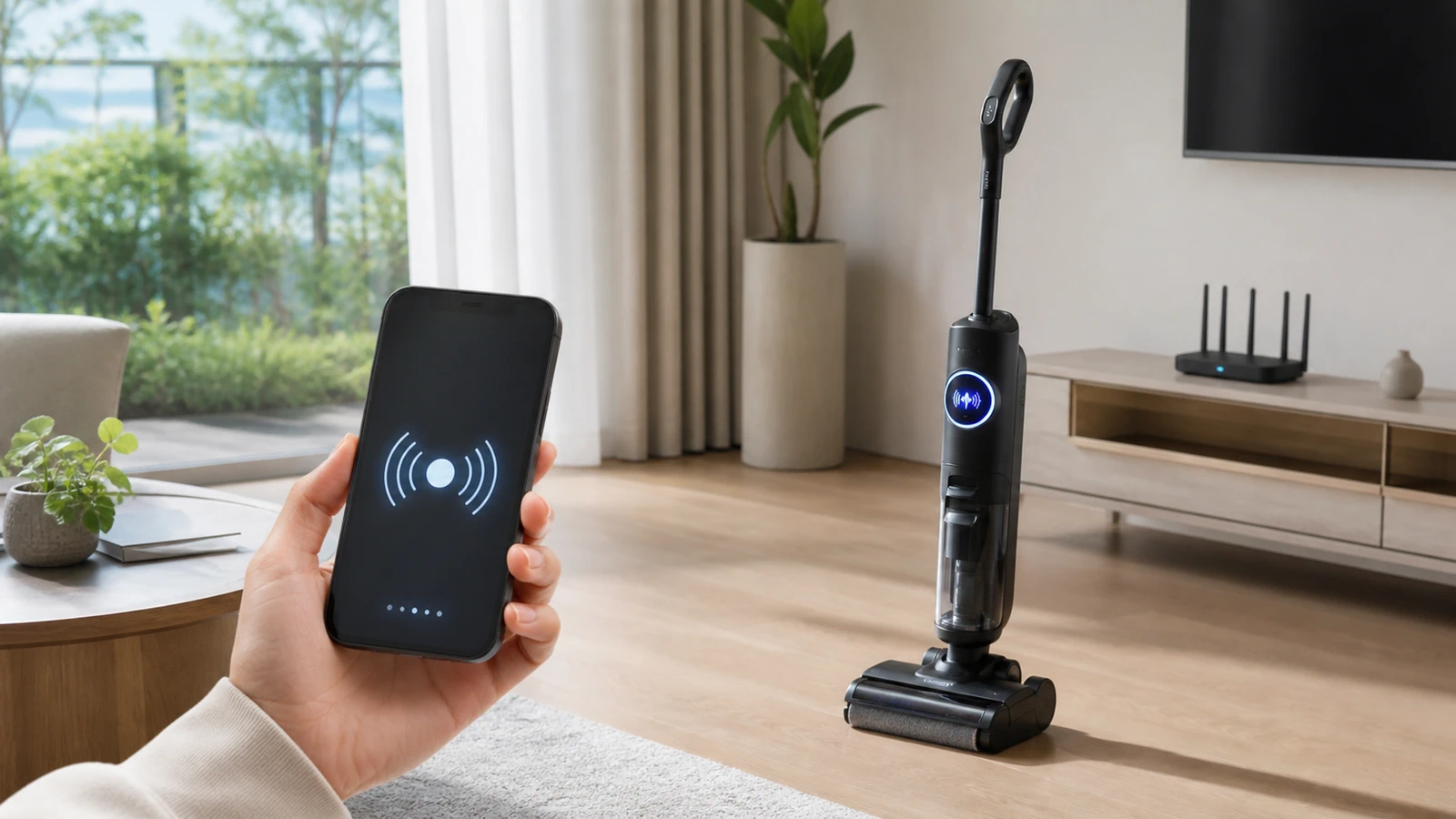
Learning how to connect Tineco to Wi-Fi is usually straightforward: install the Tineco app, put your compatible cleaner into Wi-Fi pairing mode, select a 2.4 GHz home network, and follow the in-app instructions.
The most common problem isn't the Tineco itself. It's usually a Wi-Fi setting, incorrect app permission, wrong region, or a phone connected to a 5 GHz network.
This guide explains the entire process, including how to connect a Tineco vacuum or FLOOR ONE cleaner to Wi-Fi and what to do when the Tineco app won't connect.
Quick Answer: How Do You Connect a Tineco to Wi-Fi?
Download the Tineco app on your iPhone or Android phone, sign in, add your Tineco device, and activate Wi-Fi pairing mode on the cleaner. Connect your phone to a 2.4 GHz Wi-Fi network, enter the Wi-Fi password in the app, and follow the pairing instructions until the device shows as connected.
Tineco's official troubleshooting guidance specifically recommends 2.4 GHz Wi-Fi for supported models rather than a 5 GHz-only connection.
What Do You Need Before Connecting Tineco to Wi-Fi?
You need a Wi-Fi-enabled Tineco cleaner, the Tineco mobile app, a compatible 2.4 GHz network, and your home Wi-Fi password.
Before starting, prepare these five things:
- A Wi-Fi-compatible Tineco vacuum or floor washer
- An iPhone or Android phone
- The official Tineco app
- A stable 2.4 GHz Wi-Fi connection
- Your correct Wi-Fi network name and password
The official Tineco website provides its Tineco app for both Android and iOS devices.
Does Every Tineco Have Wi-Fi?
No. Not every Tineco vacuum or floor-cleaning machine includes Wi-Fi connectivity.
Smart models in product families such as Tineco PURE ONE and FLOOR ONE may offer app connectivity, but features differ between models and generations. Check your product manual or the Tineco app if you're unsure whether your specific model supports Wi-Fi.
A simple clue is a Wi-Fi symbol, network setting, or Wi-Fi pairing option on the machine.
How to Connect Tineco to Wi-Fi Step by Step
To connect Tineco to Wi-Fi, install the Tineco app, add your device, activate pairing mode, and let the app connect the cleaner to your 2.4 GHz network.
Here's the complete process.
Step 1: Download the Tineco App
Download the official Tineco app from the Apple App Store or Google Play.
Open the app after installation and create an account or sign in if you already have one.
Tineco also provides official app download links through its support website.
Step 2: Connect Your Phone to 2.4 GHz Wi-Fi
Connect your smartphone to the 2.4 GHz version of your home Wi-Fi network before beginning the pairing process.
This is one of the most important steps.
Many modern routers broadcast both:
- 2.4 GHz
- 5 GHz
Some routers combine them under one network name. If your Tineco won't connect, temporarily separating the Wi-Fi bands or disabling 5 GHz during setup may help.
Tineco's own troubleshooting instructions state that supported cleaners should connect through 2.4 GHz rather than a 5 GHz-only network.
Step 3: Turn On Your Tineco
Make sure the Tineco has enough battery power and switch the machine on as instructed by your model's manual.
Low battery power can complicate pairing, so charging the cleaner before setup is a good idea.
Keep the device close to your router and smartphone while you're connecting it.
Step 4: Add Your Tineco Device in the App
Open the Tineco app and look for an option such as:
Add Device or +
Select your product or allow the app to detect it.
The exact screen may look different depending on your app version and Tineco model.
Step 5: Put the Tineco Into Wi-Fi Pairing Mode
Activate Wi-Fi pairing mode using the button combination specified for your Tineco model.
This step varies considerably between models.
For example, some PURE ONE models use a long press on an AUTO/MAX or Wi-Fi-related control, while other models have a dedicated Wi-Fi reset function. Tineco manuals confirm that the exact pairing control and press duration can differ by product.
Don't repeatedly press random buttons if your model doesn't match an online tutorial.
Instead, follow the instructions displayed inside the Tineco app or check the manual for your exact model.
Step 6: Enter Your Wi-Fi Password
Choose your home network and enter the correct Wi-Fi password.
Double-check:
- Uppercase and lowercase letters
- Numbers
- Special characters
- Accidental spaces at the beginning or end
An incorrect password is an easy problem to overlook.
Tineco specifically advises users to check that the Wi-Fi login information is correct and that there isn't a blank space at the end of the password.
Step 7: Wait for Tineco to Finish Pairing
Keep the phone, router, and Tineco close together while the app completes the connection.
Don't close the Tineco app or switch Wi-Fi networks during this stage.
For several supported products, Tineco's troubleshooting documentation refers to an approximately 180-second connection window, so give the app time to finish before restarting the process.
Once setup is complete, your cleaner should appear as connected inside the app.
Why Won't My Tineco Connect to Wi-Fi?
A Tineco usually fails to connect because of a 5 GHz network, incorrect Wi-Fi credentials, missing phone permissions, unstable Wi-Fi, VPN use, or incorrect app region settings.
Before assuming there's a hardware fault, check the following.
| Problem | What to Do |
|---|---|
| Phone is using 5 GHz | Switch to 2.4 GHz Wi-Fi |
| Wrong Wi-Fi password | Re-enter the password carefully |
| Weak signal | Move Tineco and phone closer to router |
| Location permission disabled | Allow location access for Tineco app |
| VPN enabled | Temporarily disable VPN |
| Wrong Tineco region | Match app region to product purchase region |
| Mobile data interfering | Temporarily disable cellular data |
| Tineco not in pairing mode | Reset Wi-Fi/pairing mode using model instructions |
| App outdated | Update or reinstall the Tineco app |
| Router problem | Restart router and try again |
These aren't random troubleshooting suggestions. Several are included directly in Tineco's official connection guidance.
Does Tineco Work With 5 GHz Wi-Fi?
Tineco's official setup guidance for multiple Wi-Fi-enabled models specifies 2.4 GHz Wi-Fi, so a 5 GHz-only connection may prevent pairing.
If your router offers both bands, connect your phone to 2.4 GHz during initial setup.
What If My Router Uses One Name for 2.4 GHz and 5 GHz?
Routers using band steering often give both frequencies the same SSID or network name.
If your Tineco keeps failing to connect, try one of these methods:
- Open your router settings.
- Temporarily disable the 5 GHz band.
- Connect your phone to the 2.4 GHz network.
- Pair the Tineco.
- Turn 5 GHz back on afterward.
Alternatively, your router may allow you to give the two bands separate names, such as:
- HomeWiFi-2.4
- HomeWiFi-5G
That makes smart-home device setup much easier.
How Do You Reset Tineco Wi-Fi?
You can reset Tineco Wi-Fi by using the Wi-Fi reset or pairing control specified for your exact model and then adding the device again in the Tineco app.
There isn't one universal reset-button sequence for every Tineco.
For example, some models use an AUTO/MAX button, while older units may have a separate Wi-Fi reset control. Official Tineco manuals show different procedures depending on the product generation.
When Should You Reset the Tineco Wi-Fi?
Reset the connection when:
- You changed your Wi-Fi router
- You changed the Wi-Fi password
- You moved to another home
- The app no longer recognizes the cleaner
- Pairing repeatedly fails
- You're connecting the Tineco to a new network
After resetting, open the Tineco app and complete the setup process again.
Why Does the Tineco App Need Location Permission?
The Tineco app may require location or nearby-network permissions to discover and pair with your cleaner during Wi-Fi setup.
On iPhone, Tineco recommends allowing appropriate location access to the app when requested. Android phones may display the permission differently depending on the operating system version.
If the pairing screen keeps searching without finding the cleaner, check your phone's app settings.
Make sure Tineco has permission to access relevant features such as:
- Location
- Local network
- Wi-Fi/network access
- Nearby devices, when applicable
Should You Turn Off Mobile Data While Pairing Tineco?
Temporarily disabling mobile data can help when the Tineco app keeps switching away from the local Wi-Fi connection during setup.
Tineco's troubleshooting documentation recommends checking cellular/network access and, for connection troubleshooting, temporarily closing the cellular network.
After your Tineco is successfully connected, you can turn mobile data back on.
Can a VPN Stop Tineco From Connecting?
Yes. A VPN can interfere with the local-network discovery process used during smart-device setup.
If Tineco pairing repeatedly fails, temporarily disconnect your VPN and try again.
Tineco specifically lists VPN use among the settings worth checking when the app can't establish a connection.
You can usually reconnect your VPN after setup is complete.
What Is the Best Way to Fix a Tineco That Still Won't Connect?
The most effective approach is to simplify your network temporarily and perform the setup again from the beginning.
Try this sequence:
- Charge your Tineco.
- Restart your phone.
- Restart your router.
- Connect your phone to 2.4 GHz Wi-Fi.
- Disable your VPN.
- Temporarily disable mobile data.
- Enable the Tineco app's permissions.
- Confirm that the app region matches where the device was purchased.
- Reset Tineco Wi-Fi according to your model manual.
- Keep the phone, cleaner, and router near each other.
- Add the Tineco through the app again.
This method removes most of the variables that cause smart-device pairing to fail.
A Practical Troubleshooting Example
Suppose your phone shows full Wi-Fi signal, but the Tineco app keeps saying it can't connect.
You might assume the cleaner is faulty.
But when you check your router, your phone is actually connected to the 5 GHz band. After temporarily switching the phone to 2.4 GHz and resetting the cleaner's Wi-Fi pairing mode, the connection completes successfully.
That's why Wi-Fi band compatibility should be the first thing you check, not the last.
Why Does the App Region Matter?
The region selected in the Tineco app should match the region where your Tineco device was purchased.
Tineco lists region mismatch as a potential reason a cleaner may not connect correctly.
If you imported your Tineco from another country, this detail becomes especially important.
Check your app's country or region settings before performing repeated factory resets.
Can You Use Tineco Without Wi-Fi?
Many Tineco cleaning functions can still be used directly from the machine without Wi-Fi, although available offline functions depend on the model.
Wi-Fi mainly enables compatible smart and app-based features.
If you're having network problems, you may therefore still be able to clean your floors while troubleshooting the app connection.
Check the manual for your exact model to determine which functions require app connectivity.
Common Mistakes When Connecting Tineco to Wi-Fi
The biggest mistake is assuming every wireless network works the same way.
Avoid these common setup errors:
Using 5 GHz During Initial Setup
Use 2.4 GHz unless the instructions for your exact model explicitly state otherwise.
Guessing the Pairing Button
Tineco's pairing process varies by model. Use the in-app instructions or official manual instead of copying steps designed for a different Tineco cleaner.
Ignoring App Permissions
Location and local-network permissions can be necessary for device discovery.
Leaving a VPN Running
A VPN can interfere with communication between the app and a device on your local network.
Setting the Wrong Region
Select the same region where the product was purchased.
Pairing Too Far From the Router
Complete the initial connection with your phone, Tineco, and Wi-Fi router relatively close together.
The Most Important Thing to Know About Tineco Wi-Fi Setup
Most Tineco connection problems happen before the cleaner ever reaches your home router.
In other words, the failure is often caused by the discovery stage: the wrong Wi-Fi band, blocked app permissions, VPN routing, incorrect pairing mode, or a region mismatch.
That's an important troubleshooting distinction.
Instead of repeatedly resetting the router or assuming your Tineco has defective Wi-Fi hardware, first create the simplest possible pairing environment:
2.4 GHz + correct password + full permissions + no VPN + close range.
If that combination still doesn't work, then move to model-specific resets and Tineco support.
Final Thoughts
Knowing how to connect Tineco to Wi-Fi becomes much easier once you understand that most supported models rely on a 2.4 GHz network during setup.
Start with the official Tineco app, connect your phone to 2.4 GHz Wi-Fi, enable the required permissions, place your Tineco into the correct pairing mode, and follow the in-app instructions.
If the connection fails, don't immediately assume something is wrong with your cleaner. Check the Wi-Fi band, password, app region, location permissions, VPN, cellular connection, and router signal first.
Because pairing procedures can differ between Tineco models, always use the instructions for your exact product when resetting Wi-Fi or entering pairing mode.
Key Takeaways
- Download the official Tineco app before starting Wi-Fi setup.
- Most Wi-Fi-enabled Tineco models should be paired through a 2.4 GHz Wi-Fi network.
- Keep your Tineco, smartphone, and router close together during initial pairing.
- Make sure the app region matches the region where your Tineco was purchased.
- Enable required location, local-network, and Wi-Fi permissions on your phone.
- Temporarily disable VPNs or mobile data if the app can't discover the cleaner.
- Wi-Fi reset procedures vary by model, so use your model's official instructions instead of a generic reset sequence.
Frequently Asked Questions
Download the Tineco app, add your compatible cleaner, activate its Wi-Fi pairing mode, and connect it to your 2.4 GHz home Wi-Fi network. Follow the instructions displayed in the app until the Tineco shows as connected.
The most common causes are using 5 GHz Wi-Fi, entering the wrong password, missing app permissions, using a VPN, weak Wi-Fi signal, or selecting the wrong app region. Switch your phone to 2.4 GHz and retry the setup close to your router.
Tineco's official support guidance for multiple smart models specifies 2.4 GHz Wi-Fi for setup. If your network combines 2.4 GHz and 5 GHz, temporarily force your phone onto the 2.4 GHz band while pairing.
Use the Wi-Fi reset or pairing control specified for your exact Tineco model, then add the cleaner again through the app. The button and required press duration differ across Tineco models.
Make sure the vacuum is in pairing mode and that the app has location and local-network permissions. Moving the cleaner closer to your phone and router and disabling VPN or mobile data temporarily can also help.
Many Tineco models can still perform their core cleaning functions without an internet connection. However, app-based features and smart controls may require Wi-Fi, depending on your model.