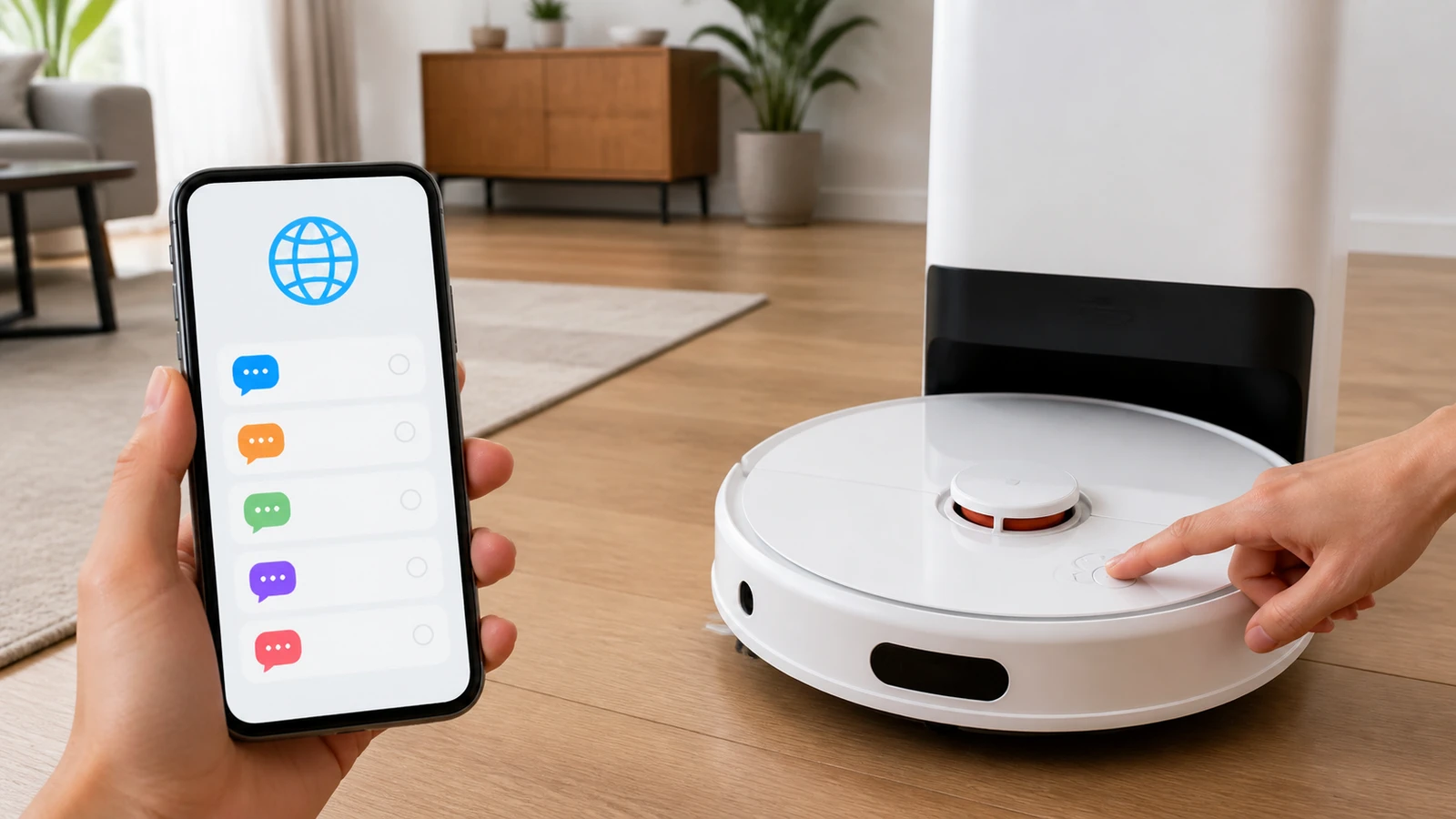
If you're wondering how to change language on Tineco cleaners, the short version is this: almost every language setting lives in the Tineco app, not on the machine itself. The vacuum's LED or LCD screen shows icons and status animations — but the voice you hear comes from a firmware language pack you pick in the app.
That single detail trips up thousands of owners every year. People hold buttons, factory-reset the unit, and hunt for a hidden menu that was never there.
This guide walks through the exact steps, the model-by-model differences, and — most importantly — what to do when the language option simply doesn't appear.
Quick Answer (TL;DR)
To change the language on a Tineco vacuum, open the Tineco app → tap your connected device → go to Settings → select Voice / Language → choose your language → wait for the voice pack to sync to the machine (usually 30–60 seconds). If no language option appears, your unit is region-locked to the market it was sold in, and the voice language can't be changed. Separately, the app's display language follows your phone's system language, and Tineco stations like the A50S switch voice by holding the prompt button for ~5 seconds.
What Does "Changing the Language" Actually Mean on a Tineco?
On a Tineco, "language" refers to three separate things, and only two of them are usually adjustable. Knowing which one you're trying to change saves a lot of wasted troubleshooting.
| Language layer | Where it's controlled | Can you change it? |
|---|---|---|
| Voice prompts (the spoken assistant on the vacuum) | Tineco app → Device Settings → Voice/Language | Yes, if your region's firmware includes multiple packs |
| App interface language | Your phone's system language (iOS/Android) | Yes — change your phone language or app-specific language |
| On-device screen text | Firmware, tied to the region the unit was sold in | Rarely — mostly icon-based, not text-based |
Here's the key definition to hold onto: a voice pack is a downloadable audio file set stored in the vacuum's firmware. Your Tineco can only speak languages that are actually installed in that firmware — the app just lets you pick between the packs already there.
Why Tineco puts language in the app instead of on the machine
Tineco keeps language in the app because the vacuum has no text keyboard or menu system. The FLOOR ONE, PURE ONE, and CARPET ONE lines use icon-driven displays, so there's physically nowhere to browse a language list. Tineco's own FLOOR ONE S5 manual states plainly that voice prompts default to English and that other languages are set via the app.
How to Change Language on Tineco Using the App (Step-by-Step)
Here's the full process to change language on Tineco vacuums through the app. It takes about three minutes, and the device needs to be powered on and connected the whole time.
- Install the Tineco app from the App Store or Google Play, and create or sign in to your account.
- Power on your Tineco and leave it on the charging dock. A charging unit stays awake long enough for the sync to finish.
- Add the device — tap the + icon, choose your model (FLOOR ONE S5, S7, Stretch S6, PURE ONE S15, etc.), and follow the Wi-Fi/Bluetooth pairing prompts.
- Open Device Settings — tap your paired machine, then the gear or three-dot menu in the top corner.
- Find Voice / Language — depending on app version, it may be labeled Voice Prompt, Voice Assistant, Language, or nested under Sound Settings.
- Select your language and confirm. Common options include English, Spanish, French, German, Italian, Dutch, Portuguese, Russian, Japanese, and Simplified Chinese.
- Wait for the sync. Keep the app open and the device powered until the confirmation appears. You'll usually hear the assistant speak the new language as soon as it's applied.
What to do if the sync gets stuck
If the language sync stalls, put the vacuum back on the dock, force-close the app, and retry on a 2.4 GHz Wi-Fi network. Tineco appliances don't connect to 5 GHz bands, and a phone sitting on a 5 GHz network is the single most common cause of a stalled sync.
A practical trick: stand within a few feet of the vacuum during the change. Bluetooth handoff is used during setup on several models, and distance quietly kills the handshake.
How Do You Change the Language on a Tineco Without the App?
Most handheld Tineco vacuums can't change voice language without the app — but Tineco stations and a few accessory products can. If you own a self-emptying Clean Station like the A50S, hold the voice prompt button for about 5 seconds until you hear a confirmation tone, and the language toggles.
For everything else, the app is the only supported route. Any guide telling you to hold the power button for ten seconds to reach a hidden language menu is describing a reset, not a language change — and you'll just clear your pairing.
The one physical option everyone forgets: mute
If your goal is really "stop the vacuum talking to me in a language I don't understand," you can disable voice prompts entirely. On most FLOOR ONE models this lives in the same app menu as language, and the machine will still show status through its screen icons and lights.
Honestly, for owners with a region-locked unit, this is the fix that actually solves the problem. It's not the answer people search for, but it's the one that works.
Why Is the Language Option Missing in My Tineco App?
The language option is missing because your device is region-locked — the firmware shipped with only one voice pack for the market where it was sold. This is the most common reason the setting never appears, and no reset, reinstall, or account change will unlock it.
Tineco builds regional firmware variants. A FLOOR ONE S5 bought in Italy carries European language packs; a unit imported from a Chinese marketplace may carry only Mandarin and English. Same model number, different firmware.
How to check whether you're region-locked
- Check your app region. Tineco's support guidance says to set your account region to match where the device was purchased. A mismatch can hide device settings entirely.
- Compare the manual. Open the manual for your exact model and market. If it lists only one voice language, that's your firmware.
- Look for a greyed-out menu. A visible but disabled Language row means the pack list is empty, not that the app is broken.
Real-world scenario: the grey-market S5
A reader buys a discounted FLOOR ONE S5 Combo from a third-party seller. The vacuum arrives speaking Russian. They pair it, find no language row, factory-reset twice, and assume the app is broken.
It isn't. The unit was manufactured for the Russian market. The only realistic outcomes are muting the voice, or returning the unit and buying from a regional Tineco retailer. That's the trade-off of grey-market pricing — and it's worth knowing before you check out.
Model-by-Model: Where the Language Setting Lives
Language handling varies across the Tineco lineup, mostly by whether the model has app connectivity at all.
| Tineco model family | App-connected? | How to change language |
|---|---|---|
| FLOOR ONE S3 / S5 / S5 Combo | Yes | App → Device Settings → Voice/Language |
| FLOOR ONE S6 / S7 / Stretch S6 | Yes | App → Device Settings → Voice Assistant |
| FLOOR ONE S9 / Artist series | Yes | App → Settings → Sound & Language |
| PURE ONE S11 / S15 / Station | Yes | App → Device Settings → Voice |
| CARPET ONE series | Yes | App → Device Settings → Voice |
| iFLOOR / iFLOOR 2 / iFLOOR 3 | No | No voice-language control; icon display only |
| A50S Clean Station | Partial | Hold prompt button ~5 seconds to toggle |
Tip:
If your model isn't listed, the fastest check is the manual's "Voice Prompt" table. If your manual includes that table, your unit has a voice assistant — and therefore a language pack somewhere.
How Do I Change the Tineco App Language on My Phone?
The Tineco app's menu language follows your phone's system language rather than an in-app toggle. Change your phone's language and the app follows on next launch.
On iPhone: Settings → Apps → Tineco → Preferred Language → pick your language. iOS lets you set a per-app language without changing the whole phone.
On Android: Settings → Apps → Tineco → Language (Android 13+), or change the system language under Settings → System → Languages.
One caveat worth stating clearly: changing the app language does not change the vacuum's voice. They're two independent settings, and confusing them is the second-most-common support complaint after region locks.
Common Mistakes When Changing Language on Tineco
Most failed language changes come down to five avoidable mistakes. Here's what to skip.
- Factory resetting the vacuum. A reset clears pairing and Wi-Fi credentials. It never adds a language pack.
- Using a 5 GHz Wi-Fi network. Tineco devices are 2.4 GHz only. Sync will hang indefinitely.
- Changing language while off the dock. The unit can sleep mid-transfer and revert to the previous pack.
- Assuming the app language changes the voice. Separate systems, separate settings.
- Running outdated firmware. Some language packs only appear after a firmware update. Check the app's Firmware section first.
The mistake that costs money
Buying from an unauthorized overseas seller to save 20–30% is the mistake that can't be undone in software. Region-locked firmware, non-transferable warranty, and mismatched charger voltage travel together. If voice language matters to you, buy from the Tineco regional store for your country.
An Original Take: Voice Language Is a Warranty Signal
Here's an angle you won't find in most guides — your Tineco's voice language is a reliable indicator of where the unit was actually sold. If your machine speaks a language that doesn't match your country's retail listing, you're almost certainly holding a grey-market import.
That matters beyond convenience. Regional units get regional firmware updates, regional service parts, and regional warranty coverage. A mismatched voice pack is an early warning that support may not be there when a brush roller or battery fails at month 14.
Treat the language setting as a diagnostic, not just a preference.
How to Update Firmware Before Changing Language
Update firmware first, because new language packs often ship inside firmware releases. Skipping this step is why some owners see a language list appear months later without explanation.
- Dock the vacuum and make sure the battery is above 50%.
- Open the Tineco app → your device → Settings → Firmware Update.
- Tap Update and keep the app in the foreground until it finishes.
- Return to Voice / Language and check whether new options appeared.
Firmware updates on Tineco appliances typically take 3–10 minutes. Don't lift the unit off the dock mid-update — an interrupted flash can require a support ticket to recover.
When to Contact Tineco Support
Contact Tineco support when the language menu is missing on a unit you bought from an authorized regional retailer. That combination points to an account-region mismatch or a firmware issue that support can correct on their end.
Have these ready before you reach out:
- Model number and serial number (printed on the body or under the dirty water tank)
- Country and retailer of purchase
- App version and current firmware version
- A short video of the settings screen showing the missing option
Tineco's US support line is 1-855-292-8864 (Mon–Fri, 9am–6pm CST) and email is support@tineco.com. Regional sites list their own contacts — use the one matching your purchase region, since support is handled regionally.
Key Takeaways
Key Takeaways
- The Tineco app is the only supported way to change language on Tineco handheld vacuums — there's no on-device language menu.
- Path: Tineco app → your device → Settings → Voice / Language → select → wait for sync.
- Tineco stations like the A50S switch voice by holding the prompt button ~5 seconds.
- A missing language option almost always means region-locked firmware, which can't be unlocked by resetting.
- The app's menu language follows your phone's system language and is separate from the vacuum's voice.
- Always update firmware first — new language packs ship inside firmware releases.
- If your unit speaks an unexpected language, treat it as a grey-market warning sign, not just a setting to fix.
Frequently asked questions
How do I change my Tineco back to English?
Open the Tineco app, tap your paired device, go to Settings → Voice / Language, and select English. Most FLOOR ONE models ship with English as the default voice pack, so it should be available unless your unit was built for a non-English market.
Can I change the language on my Tineco without the app?
No, not on handheld models — the vacuum has no text menu, so the app is the only supported route. The exception is Tineco Clean Stations like the A50S, where holding the voice prompt button for about five seconds toggles the language.
Why can't I find the language setting in my Tineco app?
The setting is hidden because your device's firmware only includes one voice pack for its sales region. Update the firmware and confirm your account region matches your purchase country; if the option still doesn't appear, the unit is region-locked and can't be changed.
Hey Google, how do I turn off the voice on my Tineco vacuum?
Open the Tineco app, go to your device's Settings → Voice Prompt, and toggle it off. The vacuum keeps working normally and shows status through its screen icons and lights instead of speaking.
What languages does Tineco support?
Tineco commonly supports English, Spanish, French, German, Italian, Dutch, Portuguese, Russian, Japanese, and Simplified Chinese, depending on model and region. The exact list is set by your device's regional firmware, not by the app.
Does changing the Tineco app language change the vacuum's voice?
No — they're completely separate settings. The app's interface language follows your phone's system language, while the vacuum's voice comes from a firmware voice pack selected under Device Settings.